Comprehensive Computer & Device Repair Services
Office-to-Office Network Linking (VPN)
- Shared files and folders
- Shared drives (mapped drives)
- Access to office servers/NAS
- Print to office printers
- Remote Desktop to office PCs
- Use “on-network only” software
- Access internal web tools
- Centralized backups to main office
- Secure access for traveling staff
- Easier remote support across sites
Playstation / Xbox Game Console & Device Repair
- HDMI port replacement
- HDMI retimer / encoder chip replacement (when needed)
- USB port replacement
- Power jack / power connector repair
- No power / shuts off troubleshooting
- Overheating fixes (fan/heatsink service, thermal paste or liquid metal rework)
- Disc drive issues (won’t read / won’t take discs)
- Hard drive / SSD replacement and system reinstall
- Liquid damage cleanup and repair
- Premium controller repairs (stick drift, buttons, charge port, battery)
Common Network Features & Add-Ons
- Reliable whole-home/whole-office Wi-Fi coverage (mesh or access points)
- Ethernet drops to rooms, offices, TVs, and game consoles
- Hard-wired backhaul for mesh systems (better speed and stability)
- Dedicated access points (ceiling/wall mounted) for clean coverage
- Network switches for expanding wired ports
- Wired network for workstations, printers, and servers/NAS
- Separate guest Wi-Fi network
- IoT network separation (smart TVs, cameras, thermostats, etc.)
- VPN / remote access to a home or office network
- Network storage (NAS) for shared files and backups
- VoIP / Wi-Fi calling reliability improvements
- Outdoor Wi-Fi coverage (garage, patio, shop)
- Clean rack/cabinet builds, labeling, and documentation
Consulting
(Click List Items to Expand)
Online accounts & security
- Account/security audit (email, banking, shopping, social)
- MFA/2FA setup (authenticator app, security keys)
- Password manager setup + cleanup of reused passwords
- Account recovery hardening (backup codes, recovery email/phone, trusted devices)
- Breach exposure check + cleanup plan (what to change first)
Identity & credit protection
- Credit freeze setup at all 3 bureaus + PIN storage
- Fraud alerts, IRS identity PIN, SSA account lock (where applicable)
- Cleanup after identity theft attempts (new passwords, new emails/aliases, new numbers if needed)
- “What to do if scammed” checklist (bank calls, report steps, device check)
Device & home security posture
- Windows hardening: updates, Defender settings, firewall, ransomware protection
- Browser security: notification abuse, extensions audit, DNS filtering
- Backup strategy: 3-2-1 backups, restore testing (people skip this)
- Encryption guidance: BitLocker/FileVault explained + key storage
Network / Wi-Fi engineering
- Router security audit (firmware, admin creds, remote management off)
- Wi-Fi design: placement, channel planning, coverage + dead-zone fixes
- Segmentation: guest network + IoT isolation (huge for security)
- VPN / secure remote access setup (when needed)
- Small office basics: VLANs, managed switches, firewall rules, QoS
Business-grade consulting
- Email domain security: SPF/DKIM/DMARC to reduce spoofing
- Microsoft 365 / Google Workspace security review (MFA, conditional access basics, sharing controls)
- Ransomware readiness: least privilege, backups, recovery plan
- Documentation: “network map + credentials vault + recovery steps” deliverable
Backup & Data Protection Planning
- Backup audit (what’s protected vs what isn’t)
- 3-2-1 backup strategy design (local + offsite + cloud)
- External drive / NAS hardware planning and setup
- Backup software selection and configuration (custom to the situation)
- Automatic scheduling and retention policy setup
- Versioning / ransomware-resistant backup options
- Test restores (verify backups actually work)
- Data migration and organization (what to keep, what to archive)
- Business continuity basics (what to do if a PC/server dies)
- Documentation: backup map + login/keys storage plan
New Computer Setup (On-Site)
- Unbox, assemble, and connect everything (monitor, dock, keyboard/mouse, speakers, webcam)
- Windows setup: updates, device drivers, and security baseline
- Sign-in and sync setup (Microsoft/Apple/Google accounts)
- Data transfer from the old computer (files, photos, browser bookmarks, email data when possible)
- Email setup and verification (Outlook, Gmail, Microsoft 365)
- Printer/scanner setup (USB or network) with test print and scan
- Internet connection setup (Wi-Fi or Ethernet) plus basic network troubleshooting
- Install and configure required software (Office apps, accounting, remote access, etc.)
- Configure common peripherals (external drives, card readers, label printers, UPS battery backup)
- Backup setup (external drive and/or cloud) with a quick restore test
- Final checks: clean startup, performance, and a short walkthrough of key settings
Performance Optimization (Speed + Stability)
- Performance Optimization (Speed + Stability)
- Startup and background cleanup (remove bloat, reduce slow boot time)
- Storage and health checks (low space, failing drive warnings)
- Windows updates, driver updates, and stability fixes
- Malware/scareware check and browser cleanup
- Memory and disk usage tuning to reduce freezing and lag
- Cooling/thermal check to prevent throttling (fans, airflow, temps)
- Upgrade recommendations when it makes sense (SSD, RAM) with clear cost/benefit
- Alternative option for older PCs: ChromeOS Flex can be installed on many older PCs to keep them secure and usable for everyday web tasks when Windows support ends. This is a very simple, new, free operating system developed by Google Inc.
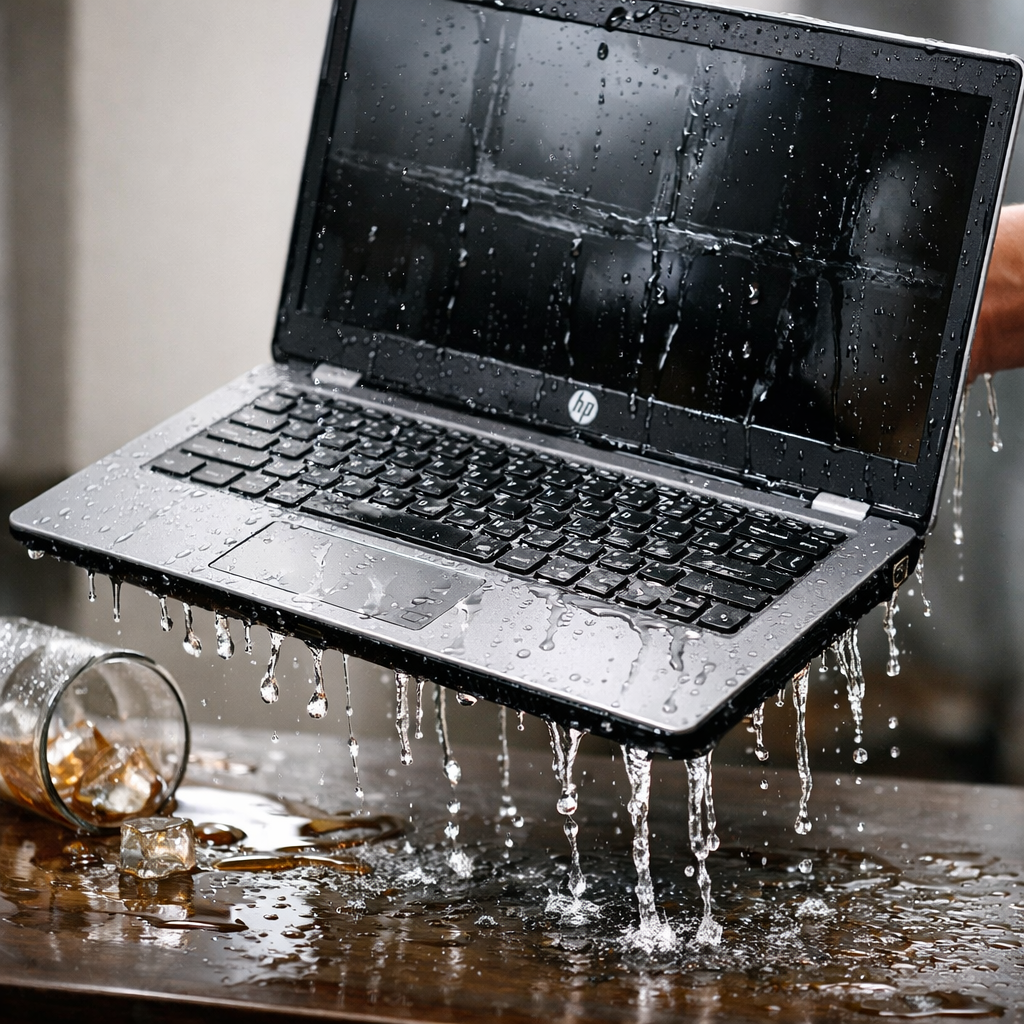
Liquid Damage Cleaning / Repair